

Splicer guides · 07
The terminal workspace
I live in a terminal for most of the day, and I didn’t want to leave it to cut a video. So Splicer, by PITO MD, has a terminal workspace: the same recording, the same clips, the same cut, in the terminal you already have open. No window, no mouse.
This guide walks the cut from splicer tui to the export, and shows where the terminal differs from the desk.
Start it
splicer tuiThat opens the terminal workspace. splicer gui opens the desk, if you ever want the other one from the same prompt.
The desk and the terminal do the same job, so if you read the first guides, you already know most of this. What changes is that everything is a key, many of them different from the desk’s, and the keys are written at the bottom of the screen.
Read the footer
The footer lists only the keys that work on the screen you are on. Not every key Splicer has, just the ones that do something right now. If a key isn’t in the footer, it won’t do anything on that screen, so look there before you look anywhere else.
The screens are numbered: 1, 2 and so on, as the footer shows them. Esc goes back.
Keep and drop
splicer tui starts with nothing open. On screen 1, the Splice screen, Enter on the first row, browse, opens a file browser, or type or paste a path and press Enter. A Splice you opened with splicer open waits in that screen’s recent list, and Enter reopens it. Then the clips arrive as Splicer hears them. drops the clip and moves on, keeps it and moves on. The same game of left and right as on the desk, just drawn in text.
In the cut, and choose a seat and Shift+ and Shift+ move it. Undo is u and redo r, y copies, v pastes and x removes. Captions are s and S. There’s no Cmd here on a Mac: the terminal workspace takes Ctrl, though your Mac terminal’s own Cmd+V paste works on the key screen and in search.
Search
/ or Ctrl+F opens search. Type a word, and the clips where you said it come up. The first Enter takes you into the results, the next goes to the clip, and keeps it.
Export
Ctrl+E exports. One difference from the desk: for a vertical export the terminal shows a sketch of the vertical canvas, not a preview. It draws where the picture sits and how it’s framed, in characters, so you can set the layout without seeing the pixels. If you want to see the pixels, open the desk.
Ctrl+C twice quits the terminal workspace. While an export runs, it asks first.
The other keys
? shows every key. k opens the key screen, where you paste your Pro key, and t there shows the terms; the Splice screen has a Terms row too. On Swipe, t picks a track instead. For updates, choose the Check for updates row on the Splice screen and press Enter: it installs one if there is one signed by PITO MD.
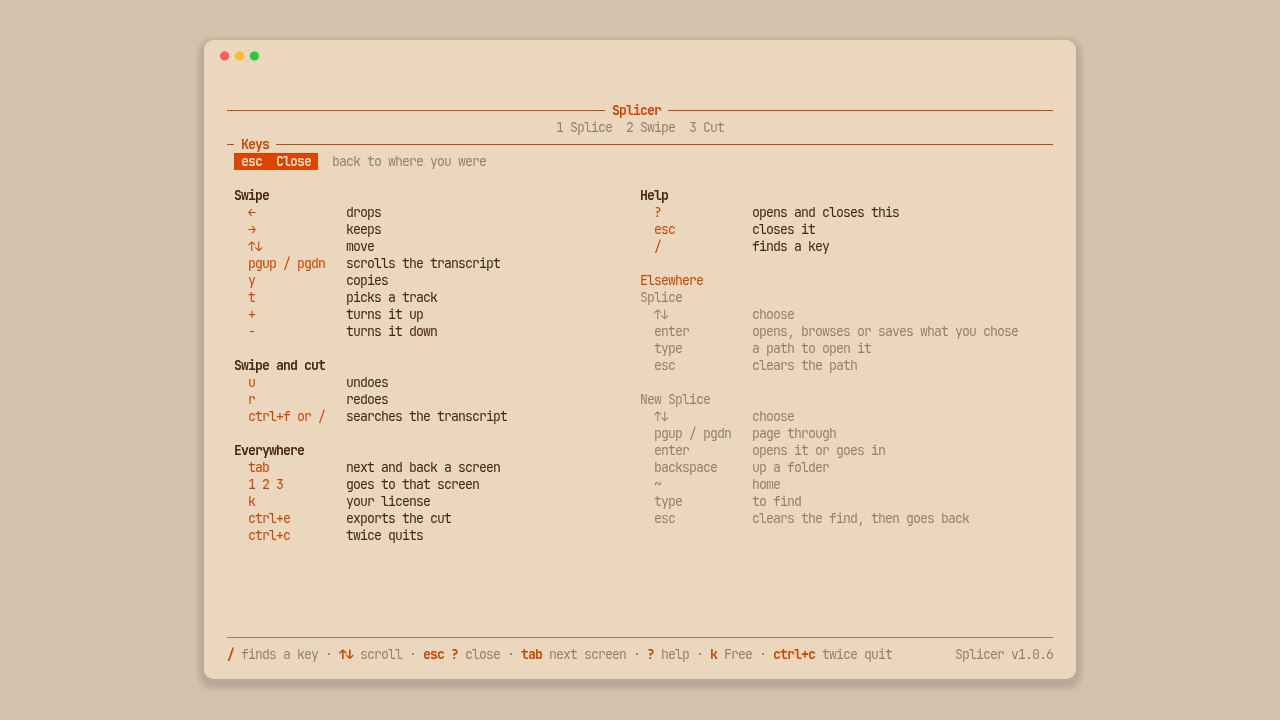
If you forget any of this, press ?. I do.
Next, the same cut with no screen at all: the command line.
The footage in this guide is NASA's holiday message from the International Space Station's Expedition 64 crew and NASA's Summer Solstice interview with Alex Young, both public domain.